How to Host Your Own Website!
In the following article I am going to show you how to host a website from your own computer. Why would you want to do this you might ask? Well for one, it’s free. It’s also great for hosting small web sites or sharing large files with friends. I’ve hosted my own website and it can be a neat little learning experience too. Just follow the simple steps below and you will have your own web server up and running in no time.
Introduction

Host a website from Home
The way to host your website, or rather one of the easiest ways to do it, is to use free software that sets things up for you to help you get started in much shorter time. There are two main components for any website: the first part is the file server and the files that are ‘served up’ to browsers that visit your website (that is, the content) and the second part is the domain name which is the computer’s address (IP address) which needs to be unique and an analogy is it’s a bit like a postal address so we know where to find you (the important point is that is a unique address).
Browsers on other computers need a way to locate the address and this is done using a Domain Name Server or DNS. As I wrote above there are many uses for hosting your own website site. However, if you are planning on running a web site with high traffic I would not recommend this. See further below for advice on building a high traffic website. If you want to try that option, I’ve found some affiliate deals to save you money.
Step 1: Download free hosting file server software
The first thing you need is to get the hosting software (it’s free). Go to http://www.snapfiles.com/get/hfs.html and download HFS (which stands for Http File Server).
Step 2: Run and install HTTP File Server Software
Double-click the hfs.exe file that you downloaded. If you have Windows Firewall enabled you will be prompted with a security warning. Click “Unblock” to allow HFS to pass through the firewall.
Step 3: Check and Configure your port if necessary
This is the tricky part. The default port that HFS uses is port 80. If your ISP blocks port 80 then you will need to change it to something else. To change it you must turn HFS off. You can do so by clicking the “On” button in the upper left corner. When you are done, turn it back on. If you are behind a router or firewall then you will have to set up port forwarding. If you need help with this go to http://www.portforward.com/. Here you can choose the type of router you have and then choose the program you want to set up port forwarding for such as Http File Server-HFS. It will walk you through the exact steps to set up forwarding.
Step 4: Test your website settings
Now you can test your settings to see if they work. Go to the menu and click “Self Test”. If it is successful then your settings are correct. You should now be able to point your web browser to your IP address to see files or pages you are sharing.
Step 5: Set up your Domain Name Server
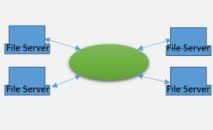
DNS required to host a website from home
Now I’m going to tell you how to assign a domain name for your web site. Since you don’t have a DNS server running on your computer, you will need to get DNS service from somewhere else. To do this, we are going to use a service called DynDNS. DynDNS offers a variety of subdomain names to use for free for your website. Go to https://www.dyndns.com/account/entrance/ to create a DynDNS account. Login with the account you have created and click on the services button.
If you have a dynamic IP address that changes, click on “Dynamic DNS” and then “Add Dynamic DNS”. Choose a subdomain and domain name. Then add the host. Now you have a domain name that you can use and give out instead of your IP address. If you would like to use your own domain name, DynDNS offers a custom DNS service for this as well for a yearly fee.
If you have a cute domain name you might like to keep and develop a website with long term, it might be wise to register it yourself with a professional domain name registrar. Another professional DNS service is Namecheap. I’ve used them myself so I am happy to provide you with a link to click and check them out for yourself (should open in a new tab). Very low cost for registering a domain name so is likely to be worth it if you have big plans for your website!
Step 6: Download and install a Dynamic DNS updater (if required)
Now go to https://www.dyndns.com/support/clients/ to download the DynDNS Updater. This is to automatically update your Dynamic DNS account in case your external IP address ever changes.
Now you can host a web site from your computer. If you want to change the default page that comes up when you browse to your site, right click on the little icon that looks like a house in the Virtual File System. Click “Default file mask…” and type the name of the file that you want to be served when someone browses to your website such as index.html. If you would like HFS to start automatically when you log into Windows, put a shortcut to it under Start – Programs – Startup. Also be sure to save your Virtual File System settings so HFS will remember the files you are hosting next time you open it up.
If you have any more questions check out HFS’s Frequently Asked Questions.
Building a high traffic website
Hosting a website from home might be a great way to test an idea you have for a website, and to learn about building and hosting websites. If you have plans to build a high traffic website (rather than one to start an idea or easily share files with family and friends) then hosting your website on your own computer might not be such a good idea. This is due to several reasons including performance, up time, customer experience and so on.
A high traffic website could pay for itself and so it makes sense to use a professional hosting service when performance matters. These can be found at very low cost for your initial venture into website hosting, and so are worth considering. Another bonus is they typically have quite good customer support. I have used more than one professional hosting company, and one of them is Hostgator. Right now they’re offering an incredibly cheap introductory rate (see below). I provide the link below for you to check them out as an option for consideration instead of hosting your own website (or maybe afterwards when you prove its potential), and want to move to a professional hosting service (cheap, with good customer support, and expected to have excellent up-time).
To create a whole website rather than just the hosting, you can use the link below.
Create A Website For Just One Cent For Your First Month! Use Coupon: 1CENT.

Summary of how to Host a Website:
So now you know how to host a website from home. It’s pretty easy if you download and use free software that sets things up for you, called HFS (Http File Server) from the link provided above. Remember there are two main parts to hosting your own website on your local computer, the file server and files that it serves up, and the domain name (your computer’s IP address) so that it can be located.

92 Comments
Pranav
December 30, 2006Hi there.. this guide is simple yet extremely good!! Please let me know anything more about hosting from home if possible.. I want to host a forum also.. please can you tell me how to do that? Also, how to make a professional File/Image Hosting websites like rapidshare.com and imageshack.us ? please do let me know.. mail me at pranav_s_2000@yahoo.com
Casey
January 3, 2007Hello Pranav,
Thanks for the comment. I really appreciate your feedback. I have never attempted to host a forum or image hosting service from my computer but I’m sure it is possible. Let me see if I can find any articles on this and if so, I will email them to you. Just remember if you plan on having a lot of traffic you should look into using a professional hosting service because this could overwhelm your computer and bandwidth. This would especially be true with a forum or image hosting service.
stealer_hunter
February 1, 2007some one stole your content !
http://www.technospot.net/blogs/index.php/2007/01/31/host-a-web-server-on-your-home-pc/
cameron
September 30, 2011btw they did not steal his content. To be honest the one there is more clear and legibil writing.
Hans Jürgen Hoffmann
March 26, 2007Hi Casey,
lovely website!
What risk is associated withopening up my computer to the access required to run a website?
Casey
March 26, 2007Hello Hans,
Thanks for your comment. Rejetto, the maker of HFS, has a writeup about this on his wiki. http://www.rejetto.com/wiki/index.php?title=HFS:_Secure_your_server I hope this answers your question.
Hans Jürgen Hoffmann
March 28, 2007Thanks – my website is up and running 🙂
Mr.AyMaN
May 16, 2007Hi Casey,
I’am AyMaN From Egypt
Thnx For these lovely website
And Lovely articles 🙂
Crampon
June 26, 2007Hi Casey
Thanks for your help. Your instructions were really easy to follow and have made my life a whole lot easier.
pork
July 27, 2007Hello Casey
great article. Thier are a few that exsplain this and you sead it best. Thanks for the help and good luck to all
Ryan
July 28, 2007Hey Casey
Is it possible to set this up when connect to a LAN?
Casey
July 28, 2007Hey Ryan,
Yes, as long as your router or ISP is not blocking the port you are trying to use.
Ryan
July 28, 2007How do you find out what kind of router or what port to use?
Casey
July 28, 2007Hey Ryan
You have to log into your router to open ports. This means you will need to know your router’s address and its username and password. Your router’s address is usually the same as your default gateway address. Follow the instructions in Step 3 to help you configure your ports. Hope this helps.
dpro
August 2, 2007great! many thanks how do I install apache, php and mysql?
dpro
August 2, 2007I found this one for web developers using WAMMP
WAMP-based [Windows, Apache, MySQL, PHP]
http://www.devside.net/
Lloyd
August 6, 2007Hi Casey, I’m very glad I stumbled across your site this morning…excellent stuff!
Among a few other contributions I made this morning, here’s a little clarification about your comment above: “If you would like HFS to start automatically when Windows starts put a shortcut to it under Start – Programs – Startup.”
This is only 90% true as apps located in any Start + Programs + Startup only get launched when that user logs into Windows. To have an app start up when the machine starts, you need to either run it as a service or add a reference to the app into the registry for auto-startup. There are apps such as that found in Microsoft’s Resource Kits that allows you to run any desktop app as a service, too; most aren’t free, but some are.
Casey
August 6, 2007Hey Lloyd,
Very good point. I went ahead and corrected my wording based on your comment. Thanks!
Jason
August 12, 2007Hello Casey,
Thank you for the information! I don’t know too much about this yet, but here is my question: I currently have a dynamic IP, how big of a problem is this with running a website like this? The website is for a store, and should ideally be up 24/7, is there a script or something that can check and update the ip so that i dont have to manually do it and the webpage will be kept up todate?
Also I dont think we would receive high traffic, but any thoughts on how much traffic is too much for this kind of set up? I can see what kind of traffic we have had based on logs on our current site, and see if this would work for us.
Thank you very much! – Jason
Jason
August 12, 2007Sorry! I didn’t read the whole post and see that my first question is already completley answered!
Thank you!
However, if you still wanted to address my question about traffic I would appreciate it 🙂
Thank you – Jason
Casey
August 12, 2007Hi Jason,
I think the amount of traffic that your site will support depends on lots of different factors. For one, it depends on how much content is on the site itself. Another factor is the speed of your internet connection and the type of computer you are using to run it. If you are trying to run a business website, I definitely would not recommend using this. However, if it is just a personal website, something that you will be sharing with friends and family, I believe you will be ok. Hope this helps.
Musicaddict
September 1, 2007Casey-great article,very cool info! I was able to easily setup as you describe. Question if I may? What about running an application? For example, if I wanted to run a media player to host an “internet radio station”, but for max of 3 connections (basically just for some friends). Would that be possible? I know of sites/utilities to do that specifically, but for a more “wide” audience and I would like to keep in this simple/low bandwidth vein.
Thanks very much!
Shad
September 10, 2007Nice!!! With this tutorial I was able to easily set up a server to host a website on. Thank you so much!!!!
Marc Caballero
September 28, 2007I love you!!! Casey, you rock!
Hoon
February 17, 2009Hi
I was unable to download the HFS executable file.
http://www.rejetto.com/hfs/?f=dl
Says that Error 404: File Not Found.
Please help! Thanks 😀
Regards
Hoon
Casey
February 17, 2009Hi Hoon,
The download page on their site seems to be broken so I updated the link to point to another site where you can get it. Enjoy!
-Casey
Stepie
December 14, 2010I was unable to download the file too, but my anti-virus blocked it, it sais a varaint of a web server or somthing like that. I’m using ESET Nod32 Anti-virus, could you maby emial me…
Hoon
February 18, 2009Hi Casey
Thanks for your speedy reply, I have clicked on the site, sure looks alright, but my company site blocked it!
The message was
Access Denied (policy_denied)
This website is blocked by Company’s content filtering policy. For enquiries, please contact your IT representative.
For assistance, contact your network support team.
Possible to send this exe file to my hotmail addy? Zipped or renamed so that it’s not filterend / blocked by hotmail?
Thanks heaps 😀
Best regards
Hoon
Jaap
March 2, 2009thank so much, it is useful for us
CJ
March 22, 2009Hi Casey,
Now i am working on dynamic web site by asp.net with database as well. I browse through the messages above, and i found out that the first comment is looking for the same thing as i do. Could you help me on this manner? Please mail me at oldshoes81@yahoo.com. Thank you.
carter
October 27, 2011hi, i have the same problém as you, so if you found a solution with HFS, please tell me, or if you found an other way to host your ASP pages, please e-mail me : k2m59@hotmail.com
Kyle
May 14, 2009This will not let me host images… could someone give me a tip?
kevin
June 21, 2009I got a question concerning HFS i followed the tutorial and i got it to work but i was wondering how do i secure it and also when i go to my website it goes there but after that it shows my ip address and the port number which i dont want it to show but i went to my no-ip.org account domain name which is kickasskevinnader.no-ip.org and if i set it to forward my domain name to my ip address then it goes straight to my router not my website or port 8000 i have to set it to redirect to my ip and if i do that it will show my ip instead of my url. please help me. But your tutorial helps a lot thanks.
Harsh
July 5, 2009hi there,
very nice info, i just loved em and defntly gave it a try, my question is how to have joomla running on the server we just created…??
thanx
Jensina
August 16, 2009Hi Casey,
The website for the DynDNS has changed for creating an account. It is https://www.dyndns.com/account/entrance/
Thanks for the great info!
Jensina
Casey
September 16, 2009Thanks Jensina, I have updated it 🙂
Jensina
September 17, 2009My absolutely free website is now up and running! Follow Casey’s guidance and you can really do it yourself. I would share the web address except the site is run off a server in my home and I don’t think my ISP would like a whole lot of traffic at this point, it’s just an advance linkshell website and forums for FFXIV 🙂
Casey
September 18, 2009Awesome! I’m glad I could help out 🙂
manu
October 12, 2009hi, can i use smart ftp or is necessary to use HFS? thx 🙂
Casey
October 14, 2009Hi Manu,
Unfortunately, HFS does not support FTP at this time.
http://www.rejetto.com/wiki/index.php/HFS_Frequently_Asked_Questions_%28english%29#Will_HFS_support_the_FTP_file_transfer_protocol.3F
Eli
October 25, 2009Is this for servers. When i followed your instructions it was a server, not a website!
Casey
October 26, 2009Eli,
I’m not sure I understand what you mean. This program allows any computer (ie your desktop) to host a website. So, in a sense, your computer becomes a web server. Hope this helps.
shivraj
November 1, 2009please help me,,,,,,,
i am using dna-a211-1,, when ever i enter the web site name it returns me the router page and not the web site.
help
help
help
shivraj
November 1, 2009i had done the port-forwarding but it is not working.
Valentin
November 26, 2009Hi, nice article. It works good but I’m having a problem with changing the index.html. I right click on the little house but the only options I see are:
Add Files…
Add Folder form disk…
New empty folder
Copy URL adress
Set user pass
Upload
I don’t see the Default file mask… I would appreciate much the help. Thanks!
William
January 6, 2010Thank you so much for this tutorial!!!
Although i had to change my port from 80 to 1337 lmfao.
Again, thank you. I am ever glad that this worked.
You have just made my day. 😀
1337, leet. lol.
Casey
January 7, 2010Hi William,
You are very welcome. Glad everything is working for you.
peter
January 27, 2010Its quite trmendous reading this article on how to host a wbsite.
I have tried to build a website using Dreamweaver,please kindly throw more light on how to get a domain name and possibly more articles on webhosting.
my email is awurumnonye@yahoo.com
I actually need an IT mentor to guide me in my quest for ICT wisdom and knowledge acquisition.
Thanks
Shivraj
February 20, 2010hello every one..
please .please tell me . this thing does not work with me … i can only see my web site at my home .. but when i got my friends computer it does not show any thing……
why?????
and i need to host a asp.net web site at my computer … is it possible?????
please send me answers .. i really need it….
thankx for reading…
riverflow
June 21, 2011I realize this is quite late, but for anyone else with this question:
All websites require a server. Almost all professional/business websites rent out their domain and it runs off of the domain host’s server. Since this is YOUR website using your own computer as the server, you will need your computer to be on, connected to the internet, and running HFS in order for the site to be functional.
Chris
March 12, 2010Thanks for that. It works great. 🙂
job at home
April 29, 2010I like design of your site What is the name of template ?
Mayank
May 31, 2010hi everybody!
I wanna start a social networking website(with email and other facilities) with static ip address and a domain name using my system’s local disk.
I want to deploy *.net (.aspx files) and SQL 2005 server.
pls tell me this all wud cost me how much?
Francesco
December 10, 2010Hello! Why do you not recommend this if i’m running a high-traffic site?
Dhruv Jain
December 18, 2010when ever i enter the web site name it returns me the router page and not the web site.can someone explain me
router address
February 14, 2011Really good write-up, but this wouldn’t appear to be compatible with my router ip address, any advice?
Alex Thomas
September 19, 2011so how do i get a standard www. example . co.uk or .com domain using this methord? many thanks, hope this thread isntdead
cameron
September 30, 2011you may also use co.cc for it and its free!
bappaditya
February 19, 2012i have a website in hostgator. but they create huge problem i want to host this in my own computer . easiest way to do what?
bappaditya
February 19, 2012Really good write-up, but this wouldn’t appear to be compatible with my router ip address, any advice?
i agree on that point.
after reading few article i decide to give up the idea
http://celebrityphoto.in/ of hosting my website in my computer
virendra
February 24, 2012Hi there.. this guide is simple yet extremely good!! Please let me know anything more about hosting from home if possible.. I want to host a forum also.. please can you tell me how to do that? Also, how to make a professional File/Image Hosting websites like rapidshare.com and imageshack.us ? please do let me know.. mail me at vppatel951@gmail.com
Haris
July 5, 2012I found the solution to host an ASP.NET website from your computer. Following link would help you in this regard. http://blog.harisaltaf.com/?p=546
Orange Sheep
August 2, 2012its esyer if you have hamachi
vanessa
August 10, 2012Can you help me please. I have paid to have a website built. When it was finished I was then told I would have to pay hosting fees. This was not told to me at the beginning.
I dont know what this is or what it does. I have emailed the person who did the site to ask what this is. He will not reply and has taken down my web site because I havent paid the hosting fees. Can he do this? Do I need a host?
Please help.
Saleem Khan
December 19, 2012Hi,
Casey
How are you doing today ?
It’s problem of my PC that it doesn’t open an unencrypted page. For that I have created an self signed SSL Certificate but I am still unable to open the website.
Please help to get rid of the problem.
Skype me on saleem.valueforbenefit
more details
May 7, 2013I don’t know if it’s just me or if perhaps everybody else
experiencing issues with your site. It appears as if some
of the written text on your posts are running off the screen.
Can someone else please provide feedback and let me know if this is happening to them too?
This might be a issue with my web browser because I’ve had this happen previously. Kudos
Jonathan
May 10, 2013It looks like it is a problem with your browser, I am seeing everything just fine.
If you are using IE or Safari, you might think of upgrading to Firefox or Chrome.
You might also try hitting ctl or cmd 0 to reset your browser’s zoom to 100%
Hope that helps!
Freak@15
May 22, 2013I am only 15 and I love working with computers. I want to make my own website that is not docked on another site and that is free. I am in the process of creating my html document and if u could give me some help or a HTML instructional that would be great. Thank you.
Joshuabates@homesc.com
Ayesha
July 5, 2013that’s a great idea. I will try it but it’s very lengthy process. :p
Rick
August 14, 2013I have been reading about the littany of problems associated with running an ms access project on a website. I am wondering, even hopeful, that there may be easier to run a low traffic the site from my pc??
jaysukh patel
August 27, 2013Nice article with impressive help..
Jaysukh patel recently posted [broken link removed – Ed] List of web hosting techniques for all website hosting
John Kasey
November 1, 2013Nice tutorial. I followed the steps and it worked. Thanks Casey
John
http://www.manualpc.com
google.com
December 15, 2013Please let me know if you’re looking for a article author for your site.
You have some really good posts and I feel I would be a good asset.
If you ever want to take some of the load off, I’d
absolutely love to write some articles for your blog in
exchange for a link back to mine. Please blast me an email if interested.
Kudos!
Bikes
January 17, 2014Can this be done on an android tablet?
Pankaj
February 11, 2014Thanks Casey its working, i am from New Delhi, INDIA.
Thanks.
🙂
Gossip Lanka
September 1, 2014Thank you very much, it works 😀
nick
November 29, 2014keep up the good work. u keep the tutorial simple but accurate, no arrogance or bullyish talk.good teacher u r.
yash
February 19, 2015You can also use this simple method to host a website of your own for free.
check it out
http://hostwebsiteforfree.blogspot.in
Deb
April 1, 2015Hello,Can my domain be registered to go daddy and how can I host my IP address changes every time power is cut from dongle the last part of IP changes ,first 2part always remain same,,And my last question is database hosting possible in it?I mean if I install word press to create a blog
Admin
April 2, 2015There’s a new tool from http://homehttp.com which can help people publish their local website in one minute.
aakash
April 6, 2015how can i make my pc as a host to serve web site online….
jatm
April 19, 2015Hello everyone, I share you a video that you can use
https://www.youtube.com/watch?v=ycGR5vbNVBM
My best regards
GILBERT MBEZI
April 19, 2015Hi… I’m realy happy to meet you, especially your service, I’m student taking IT course and I would thank you for your service since it is so helpful to me.
Gabriel
May 4, 2015Hello, Can I use this to host an ASP NET app with mysql? I just want to make a small paage.
Ankit
September 29, 2015This is really helpful tutorial. I am trying this for my windows 7 pc but getting some errors. I am trying this on electrical.bazaronweb.com
Collins
December 7, 2015Your page was helpful but I’ve never hosted a website before so after reading i practicalised it but i want to know more so as to help people who need my help too.
Dhruv Singhal
December 11, 2015can you please make a vedio to show how it all is done
Sajjad Rezaei
July 9, 2016please explain the IP and DNS settings of Web Server
Colin
July 9, 2016I have been hosting my asp.net with mysql database activity on a hosting site for a few years…but recently the hosting site when to shit and I was thinking if it was possible to do it from home, but I have no idea where to start. I have 3 computers, 1 really doing nothing at the moment. Anyone have any advice what I should do and where to start.
shoaib
October 6, 2016thanks a amazing information about the computer. This website is most help full for the computer information
Programmer10X01
May 4, 2017This is great now I can host my website from my own computer. Do no need to find a host with python and django support anymore. Since it is running from my computer.
Thank you verry much!!!!!!!
LostTime
December 7, 2018Here’s detailed guide that explains how to host a website from home on a Raspberry Pi 3: http://cheapskatesguide.org/articles/raspberry_pi_website.html
Leave A Response