As a tech, I am constantly setting up new computers. I wish setting them up was as easy as just plugging them in and turning them over to the user but, unfortunately, it’s not. Before I can do this, not only do I have to install all of the typical company software, but I also have remove all of the preloaded trial software. This can take lots of time depending on the manufacturer of the computer and how much software has been preloaded. This is time that I could spend doing other things like managing our servers. In my search to make this process much easier, I have found a program that will automatically uninstall preloaded software for me, and I would like to show you how to use it.
Edit: I am aware that imaging is better solution if you have a set of standard computers. Since we set up a lot of non-standard computers, this solution works great. This also works great after a system restore on an older computer that you don’t have an image for.
The first thing you will need to do is go to here and download The PC Decrapifier.
When you run the program, you will see a list of preloaded software for removal.
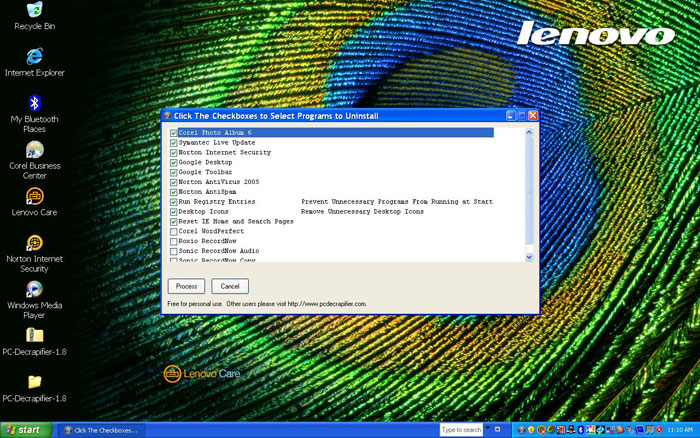
Select the programs that you want to uninstall. It will also list some non-trial software that isn’t needed by most users.
Click the Process button and it will start uninstalling the software.
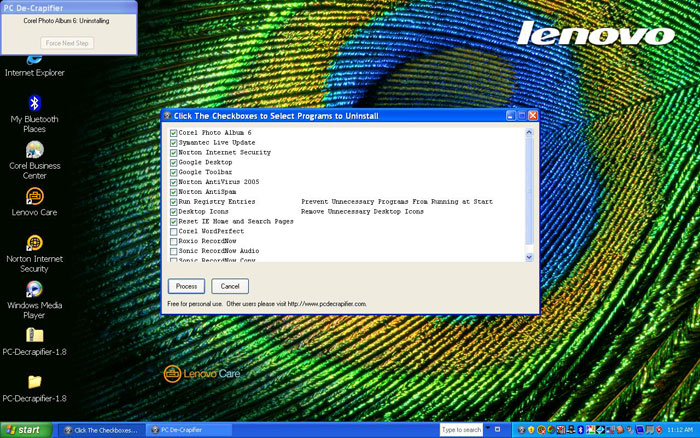
You will notice a dialog box in the top corner of your screen that will tell you which program is being uninstalled. There is even a “Force Next Step” button if the uninstaller hangs on one of the programs.

16 Comments
archshrk
June 1, 2007Sounds great and I’ll keep it in mind for my next computer purchase. Our office just wipes the system clean and uses an image to make all our machines the same. Comes in handy when the user or system screws things up.
Pj
August 2, 2007You really should take a look into imaging them… Saves literally days of configuration work.
Pete
August 2, 2007Never heard of that software but i will now use it – I am always have to decrappify machines!!
Jack
August 4, 2007Imaging’s the way to go in a corporate environment. But this will save an individual user plenty of time in getting that new box up and running after the UPS box arrives. Thanks.
Someone
August 5, 2007How is it people like you get IT jobs?
Lonnie Fread
August 6, 2007I’ve rethought this twice but I can’t let it go… Comment number five was uncalled for and rude. You should apologize.And if you have something to say have the courage to use your name.
Brandon
August 9, 2007This is a good program for home users who would easily be overwhelmed with reloading the OS, but don’t know whats “crap” to remove.
thanks for the info.
Dave
August 9, 2007This looks like a really good application. I hate the trialware the PC manafacturers load into PC’s. If I want Norton or Mcafee I would purchase them.
Paquito
August 21, 2007Lenovo Recovery Image allows you, from the beginning, to set an installation with only the software you need…
That’s really good to uninstall Lenovo’s Network Utilities (which are painful) and Norton Antivirus Trial (which is a nightmare to uninstall once installed).
For Corporate Environments, anyway, Norton Ghost is a great tool to create machines (10 minutes and it’s done).
Regards from Spain,
Paquito.
http:/paquito4ever.blogspot.com
Derek
August 28, 2007How about the small business environments people? You forget not everything in this country (not to mention world) is done by huge corporate chimeras. For the small business that might not be able to buy their hardware all at once, and who makes its computer purchases individually, this is a great solution. A good IT person knows there is no “one best way”, and different situations call for different tools. This happens to be one of those tools.
sun818
September 15, 2007Thanks for the tip on decrapifier. Software like that is applicable to everyone where disk images have to first be created. If you know to build a disk image and know how to brick your own machine, you probably don’t need the above tip. For the rest of us, the decrapifier. Speaking of crap, I recommend the freeware CrapCleaner which cleans unused files from your system.
Brittany
September 28, 2007This is a great tool to use in small IT shops that don’t necessarily have 100 of the same machine from the same vendor. Thanks!
BTW, to ‘someone’ who posted comment 5: Nice, helpful people are the most likely to get IT jobs. Smarting off isn’t going to get anyone very far in a service-oriented field.
Oyanka
October 8, 2007Hey Casey!
This totally helps, there are times that it takes hours…….to get rid of unwanted programs that are pre-installed on new and old computers. I’ll totally check this program out. By the way, when will the new site be finished?
And the person that wrote comment #5 is rude and doesn’t even have the guts to use their name.
Jim
November 9, 2009Reinstall the OS.
Casey
November 9, 2009Yes but the problem is that some of the reinstall disks will put this software right back onto the computer.
Jose
July 14, 2010Grate tool, use it all the time,
Leave A Response